

Ingin menjaga koleksi game Steam Anda tetap aman? Mungkin Anda pernah mengalami situasi di mana game favorit Anda tiba-tiba menghilang karena masalah teknis atau terhapus secara tidak sengaja. Untuk menghindari hal ini, melakukan backup game Steam adalah tindakan bijak. Artikel ini akan membahas cara melakukan backup game Steam dengan langkah-langkah sederhana yang bisa diikuti oleh pemula, terutama bagi mereka yang berusia 18-28 tahun. Mari kita mulai!
Mengapa Anda Harus Melakukan Backup Game Steam?
Sebelum kita masuk ke dalam panduan langkah demi langkah, penting untuk memahami mengapa melakukan backup game Steam itu penting. Ada beberapa alasan utama:
- Kehilangan Data: Meskipun Steam umumnya aman, bisa saja terjadi masalah teknis atau kesalahan pengguna yang dapat menyebabkan game hilang. Dengan backup, Anda dapat dengan cepat memulihkan game-game tersebut tanpa harus mengunduh ulang.
- Menghemat Waktu: Mengunduh game Steam dapat memakan waktu yang cukup lama terutama jika koneksi internet Anda lambat. Dengan backup, Anda tidak perlu mengunduh game dari awal jika terjadi masalah.
- Perlindungan terhadap Kerusakan Perangkat: Jika perangkat Anda mengalami kerusakan atau Anda ingin mengganti perangkat, backup game akan membantu Anda memindahkan koleksi game Anda dengan mudah.
Langkah 1: Persiapan Awal
Sebelum memulai proses backup, ada beberapa persiapan awal yang perlu Anda lakukan:
1. Verifikasi Kapasitas Penyimpanan Anda
Pastikan bahwa perangkat penyimpanan Anda memiliki ruang yang cukup untuk menyimpan backup game Anda. Game-game modern biasanya memerlukan banyak ruang, jadi pastikan Anda memiliki penyimpanan yang mencukupi.
2. Pastikan Steam Anda Terupdate
Pastikan aplikasi Steam Anda dalam kondisi terbaru. Ini penting untuk memastikan Anda menggunakan fitur-fitur backup yang terbaru dan paling stabil.
Langkah 2: Backup Game Steam
1. Buka Aplikasi Steam Anda
Langkah pertama adalah membuka aplikasi Steam di komputer Anda. Pastikan Anda sudah login ke akun Steam Anda.
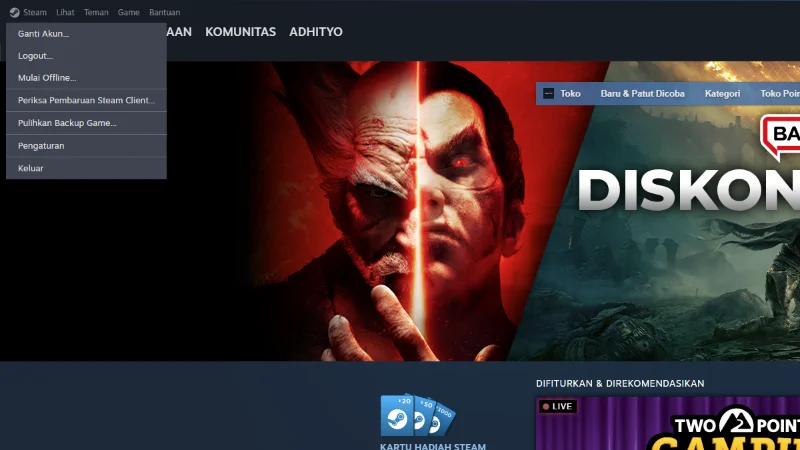
Update terbaru, kini Backup Steam harus pergi ke Library atau Perpustakaan
2. Masuk ke Menu “Library / Perpustakaan”
Setelah Anda masuk ke dalam aplikasi Steam, pergilah ke menu “Library”. Di sini, Anda akan melihat daftar semua game yang Anda miliki di Steam.
3. Pilih Game yang Ingin Anda Backup
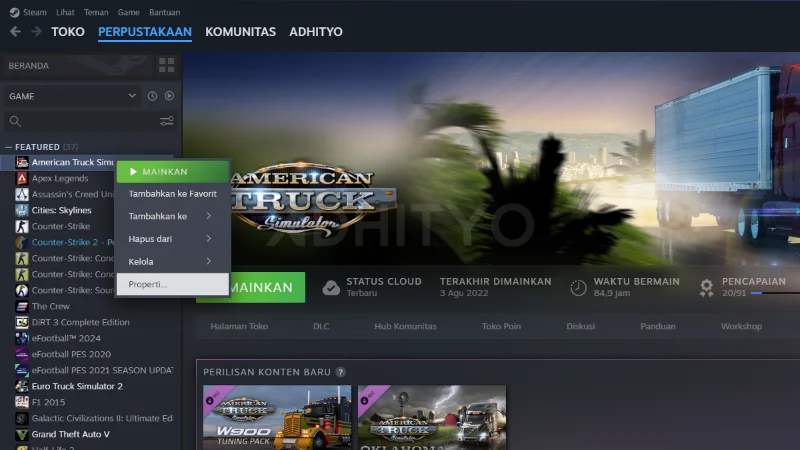
Cari game yang ingin Anda backup dalam daftar Library. Klik kanan pada game tersebut untuk membuka menu kontekstual.
4. Klik Kanan pada Game yang Dipilih
Pilih Properties / Properti
5. Mulai Backup file game
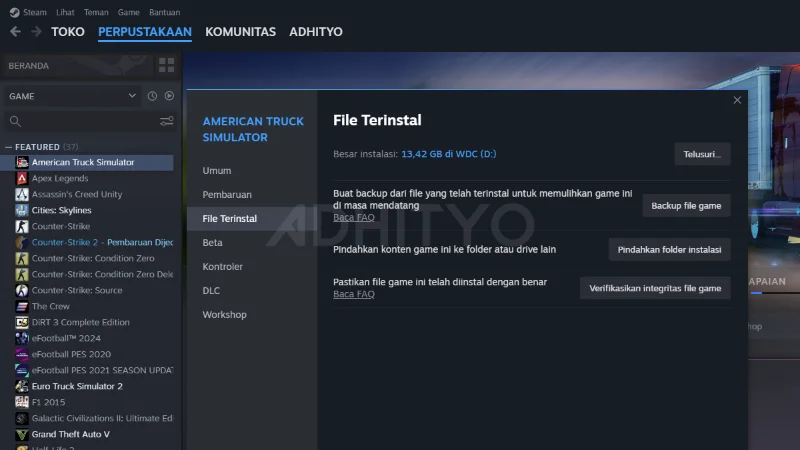
Steam akan menampilkan jendela pop-up lalu Pilih “File Terinstal“, klik “Backup file game“.
6. Tentukan Lokasi Penyimpanan
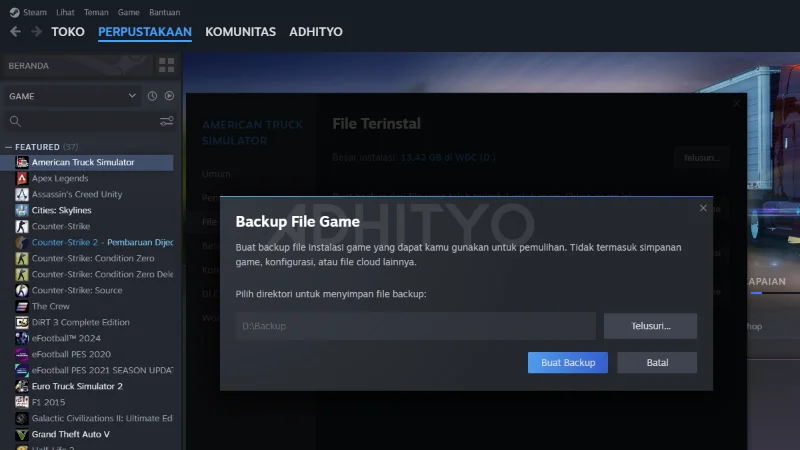
Klik “Telusuri…” lalu Pilih lokasi penyimpanan untuk backup gamenya yang sesuai dan klik “Buat Backup“
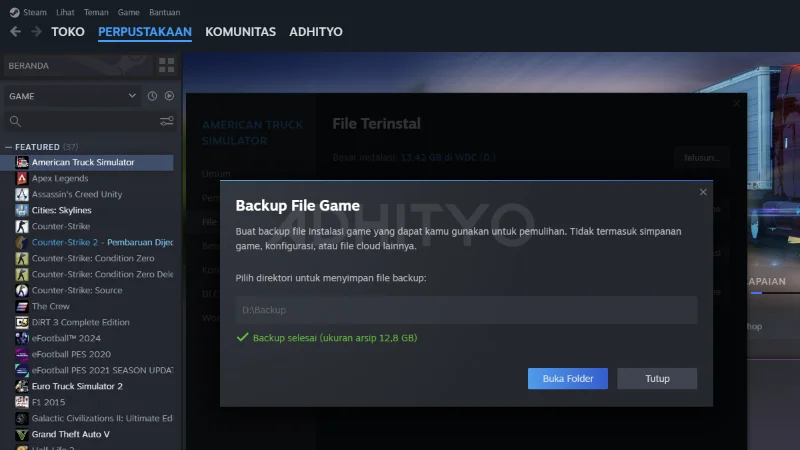
6. Tunggu Proses Backup Selesai
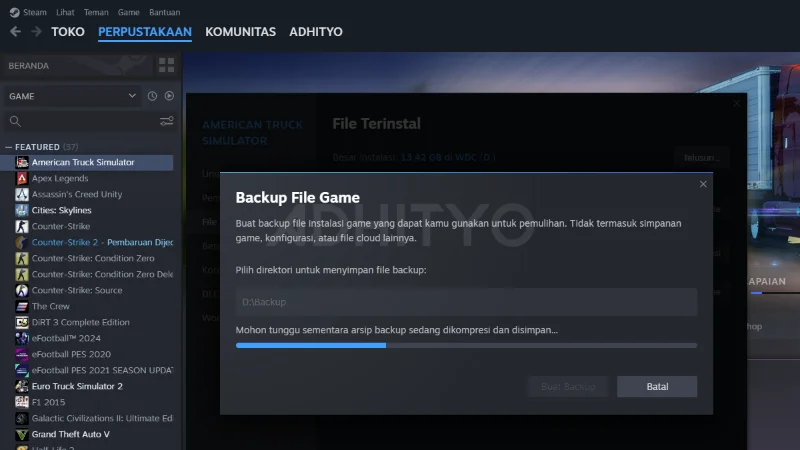
Proses backup akan dimulai, dan Steam akan mengarsipkan game ke lokasi yang Anda tentukan. Waktu yang dibutuhkan akan tergantung pada ukuran game dan kecepatan perangkat Anda. Tunggu hingga proses selesai.
Tips Tambahan untuk Pemula
1. Simpan Backup di Tempat yang Aman
Penting untuk menyimpan backup game Anda di tempat yang aman. Anda bisa menggunakan perangkat penyimpanan eksternal atau cloud storage agar game Anda tetap terlindungi.
2. Rutin Backup Game Anda
Agar selalu siap jika terjadi masalah, sebaiknya rutin melakukan backup game Anda, terutama setelah mengunduh atau memperbarui game baru.
3. Periksa Koneksi Internet Anda
Pastikan Anda memiliki koneksi internet yang stabil saat melakukan proses backup dan restorasi. Ini akan memastikan proses berjalan lancar.
Kesimpulan
Melakukan backup game Steam adalah langkah yang bijak untuk melindungi investasi Anda dalam koleksi game Anda. Dengan mengikuti panduan ini, Anda sekarang tahu cara melakukan backup dan restorasi game Steam dengan mudah. Jangan biarkan game-game berharga Anda hilang begitu saja. Simpan backup dan mainkan game Anda tanpa khawatir kehilangannya. Selamat bermain!
This site was… how do you say it? Relevant!! Finally I’ve found something
that helped me. Appreciate it!